
NorthTech customer guide · Hikvision

How to use Hik-Connect for your cameras
View live cameras, find and save recordings, talk through compatible cameras and use supported warning controls.
The screenshots and icons are manufacturer examples from the years shown in their captions. Your app may look different. Controls depend on the camera, recorder, software and your access.
Step 01
View your cameras
Sign in to Hik-Connect. Your cameras must already be added or shared with you. Remote viewing needs an internet connection.
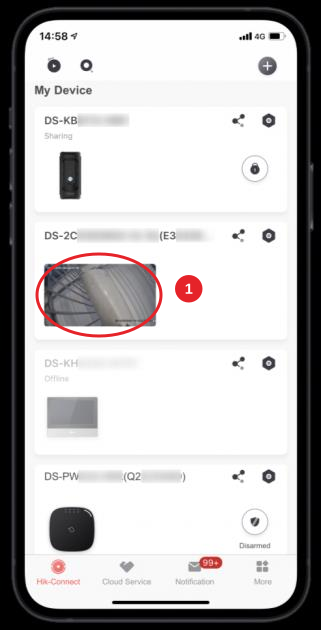
- 1Open live view. Tap the camera thumbnail in the device list. Choose the camera you need.
- Show the controls. Tap the live video. Rotate your phone or use the full-screen control where available.
- Talk through a camera. On a compatible camera, tap Talk in live view and allow microphone access. Follow the on-screen talk mode or hold-to-talk prompt, then end the call with the talk control.
If the picture will not load, check your phone connection and whether the camera is online. Ask NorthTech for help with access permissions or verification codes rather than changing recorder settings.
Step 02
Find a recording
Open Playback from the camera menu. Select the camera and date or start time, then start playback. Recordings must still be available on your system.
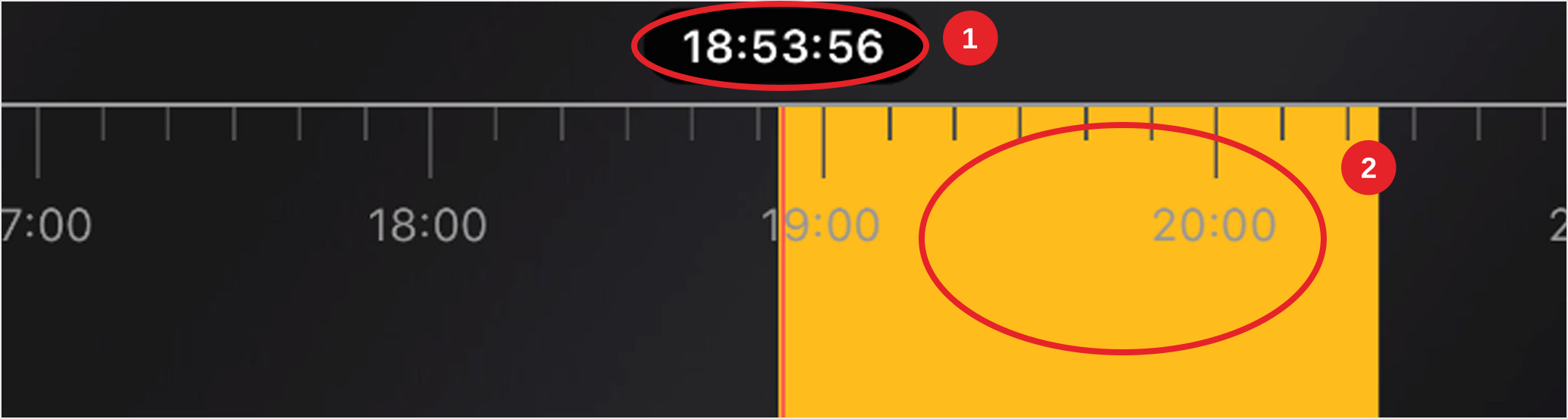
Swipe sideways to view the full example.
- 1Check the selected time. The time above the playhead shows the moment you are viewing.
- 2Move to the event. Drag the timeline through the available recording. Pinch or spread it to change the time scale where supported. Start just before the event.
Step 03
Save and share a clip
The Record, Save and Share controls below are genuine Hikvision icon examples from 2023. Their appearance and menu names can vary with your app and device.

Record

Save to phone
Share
- 3Record the section you need. During playback, tap Record at the start and again at the end to stop.
- 4Save it to your phone. Open the app’s saved clips or album area, called Pictures and Videos under Me or More in some versions. Open the clip, choose Save and allow storage access if prompted.
- 5Check before sharing. Play the exported file to confirm it contains the event. Share only with authorised people.
If Playback offers Download, you can select a time range and follow its prompts instead. Save important footage before it is overwritten. Keep an unedited copy and note the camera, date and time.
Step 04
Use supported camera warnings
Only compatible, configured cameras offer manual audible-warning and strobe-light controls. Ask NorthTech to confirm which controls your camera supports before first use.

Audible warning

Strobe light
- 1Sound a warning. Open the camera’s Live View. On a supported setup, tap the audible-warning control to turn the sound on or off.
- 2Flash the warning light. In Live View, use the strobe-light control to turn flashing on or off on a supported setup.
Confirm the warning has stopped using the method NorthTech demonstrated for your system. The notification bell on the device list changes notifications; it is not the manual audible-warning control. If a control is missing, ask NorthTech to check the camera, recorder, configuration and your permissions.
Need a hand?
Tell us the camera name, phone type, app version and what you see on screen. For footage, include the date and approximate time. Do not send passwords or verification codes.
Request supportPrepared by NorthTech using public Hikvision help. This is not an official Hikvision publication. Reviewed 2 November 2026.
Manufacturer references