
NorthTech customer guide · Dahua

How to use DMSS for your cameras
View live Dahua cameras, find and export recordings, talk through supported cameras and use available light or buzzer controls.
The screenshots and icons are manufacturer examples from the years shown in their captions. Your app may look different. Controls depend on the camera, recorder, software and your access.
Step 01
View and talk through your cameras
Sign in to DMSS on a phone that already has your recorder or cameras added. Remote viewing needs an internet connection.
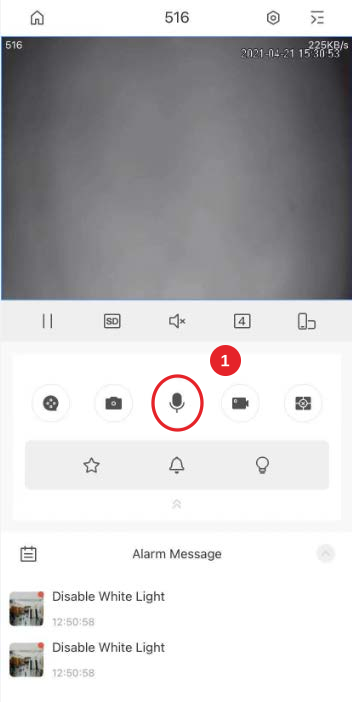
- Open the recorder. On the Device screen, tap Play at the right of your recorder to start its live cameras.
- Find the right camera. Swipe left to see the next group of four channels. Double-tap the camera you need for a larger view.
- Another way to choose cameras. Tap Live, open the device list at the top right, select one or more channels and tap Start Live View.
- 1Talk through the selected camera. On a supported two-way audio camera, tap its microphone and allow phone microphone access if asked. Use the on-screen end control when finished.
- Listen without talking. The speaker control mutes or unmutes camera audio. It does not turn on your phone microphone.
A long press on the microphone may open device talk to the recorder instead of the camera. Use that only if NorthTech has shown you the correct audio connection. If a camera does not appear, ask NorthTech to check your access rather than resetting the recorder.
Step 02
Find a recording
Recordings must still be available on your system. The app usually starts playback from today.
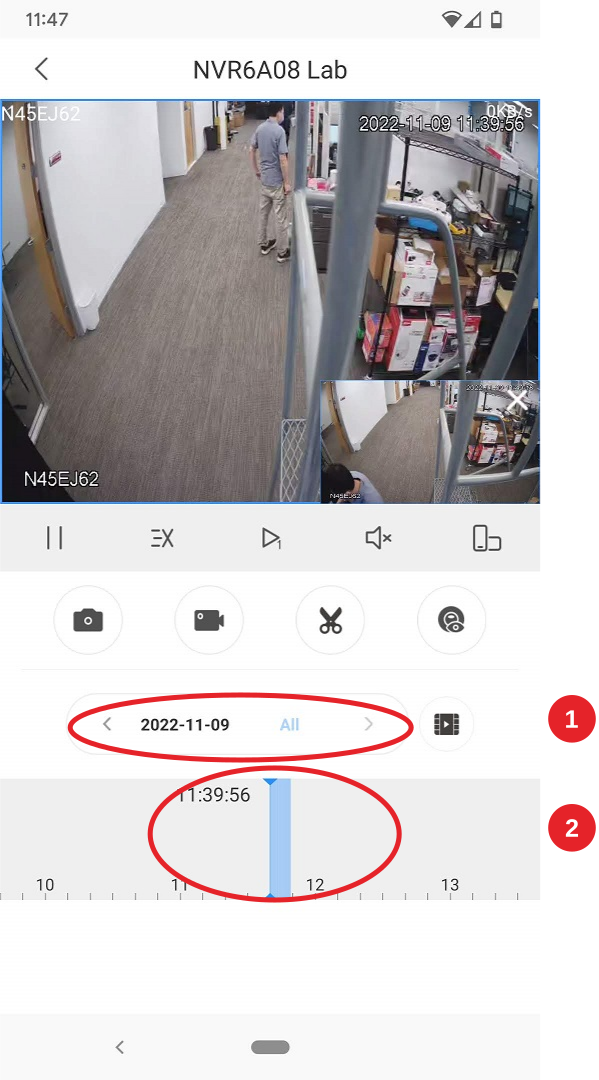
- Open Playback. From a camera’s live view, tap Playback or the film icon. You can also open Playback from Device and choose a camera channel.
- 1Choose the day. Tap the date above the timeline, select a day with recordings, choose a Record Type and tap OK. Try All first so a filter does not hide the event.
- 2Find the event. Drag the playback timeline to just before the event. Pinch or spread it to change the scale where supported. Coloured areas show available recordings.
The time shown belongs to the camera or recorder. If it differs from your phone, note the difference. If no recordings appear, check the camera, day and recording filter, then ask NorthTech to check recording and playback permissions.
Step 03
Save and share a clip
Save important footage promptly before it is overwritten. The download inside DMSS and the copy in your phone’s photo library are separate steps.
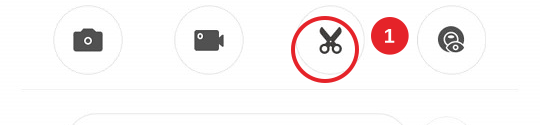
- 1Open the clip tool. Tap the scissors in Playback for the camera and recording you have opened.
- 2Set the start and end. Drag to the start time and tap Play (triangle). Move to the end and tap Stop (square). Check the range, tap OK and wait for the download.
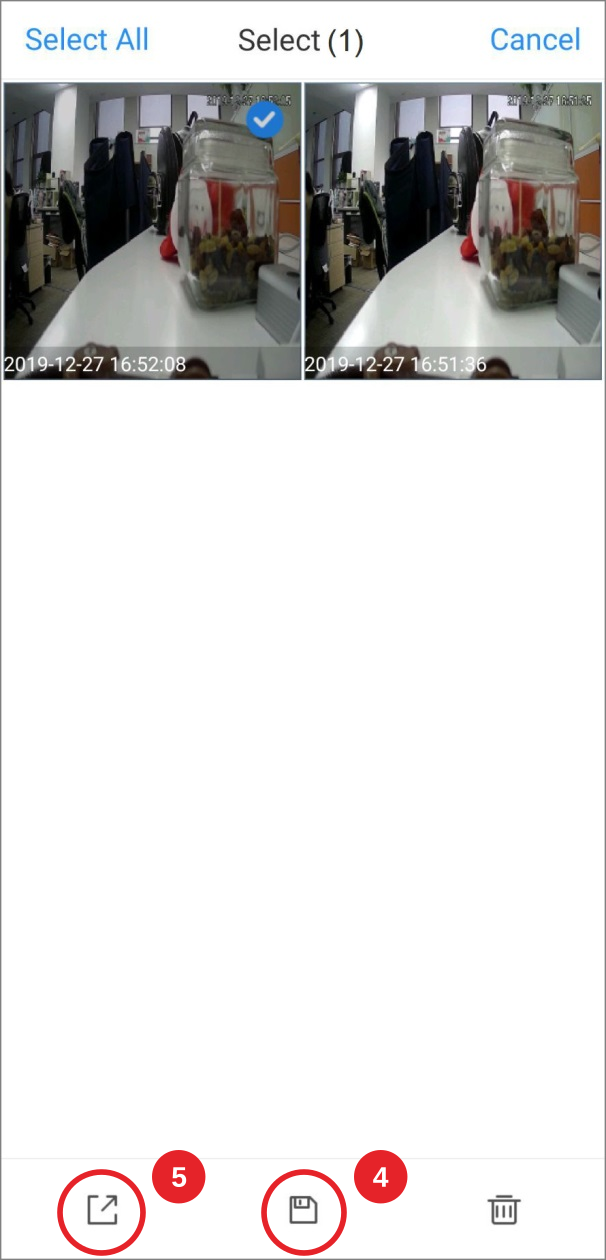
- 3Find the downloaded clip. Go to Me, then My Files or your app’s saved-files area. Choose Video and select the clip using Edit or a long press, depending on the version.
- 4Save it to your phone. Tap Save and allow Photos or storage access if prompted. Check that the file appears in your phone’s photo library.
- 5Check before sharing. Play the saved clip to confirm it contains the event. Use Share in DMSS or your phone’s photo library, and send only to authorised people.
Keep an unedited copy and note the camera, date and time. Share the clip, not your camera login or account access. Menu names can vary; Dahua’s 2025 UK example highlights My Files in its screenshot.
Step 04
Use supported camera warning controls
Only compatible, configured cameras offer manual warning lights or an audible warning. Ask NorthTech to confirm the controls for your model before first use.
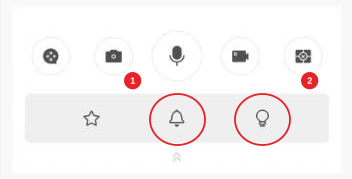
- 1Sound a warning. In the supported camera’s Live View, tap its buzzer control, shown as a bell in this example, to enable the sound.
- 2Turn on the light. Tap the bulb control to enable white light on supported models. Not every camera has a strobe or coloured warning lights.
Use the stop or off control demonstrated for your system and confirm the warning has stopped. Do not assume a second tap works the same way on every model. Camera outputs are separate from alarm-hub arming, event notifications and recording schedules.
Need a hand?
Tell us the camera name, phone type, app version and what you see on screen. For footage, include the date and approximate time. Do not send passwords or verification codes.
Request supportPrepared by NorthTech using public Dahua help. This is not an official Dahua publication. Reviewed 2 November 2026.
Manufacturer references