
All Control4 X4 guides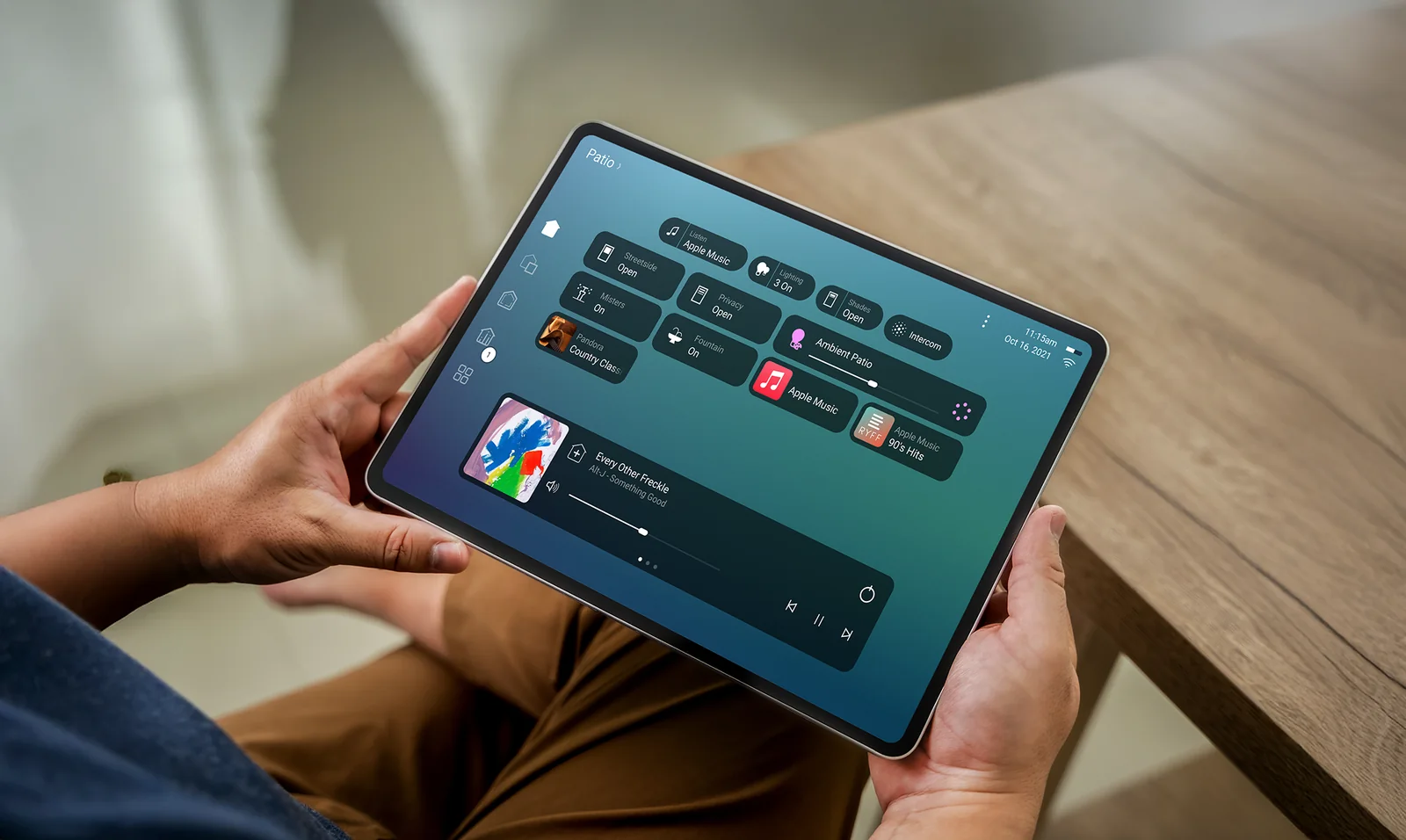
Control4 X4 example. Your home’s controls depend on what is installed.
Music · Control4 X4
Play music in another room
Start listening, add a room, change the volume and stop playback.
NorthTech guide · About 3 minutes
Play music in another room
X4 shows what is playing in your home as a session. You can use that session to include other rooms and adjust the sound where you are listening.
- Start music in a room from a source that NorthTech has connected to Control4.
- Open the active music session to see which room is playing.
- Add another available room to the session, then set a comfortable volume for each room.
- When you are finished, stop the session or remove rooms you no longer want to use.
Still need help?
Tell us which screen you are on and what you are trying to do. We can check how your system was set up.
Get support