
How to set the date and time on a Ness M1 Navigator
Set the M1 alarm clock from its Navigator touchscreen keypad, including the date format and 24-hour time.
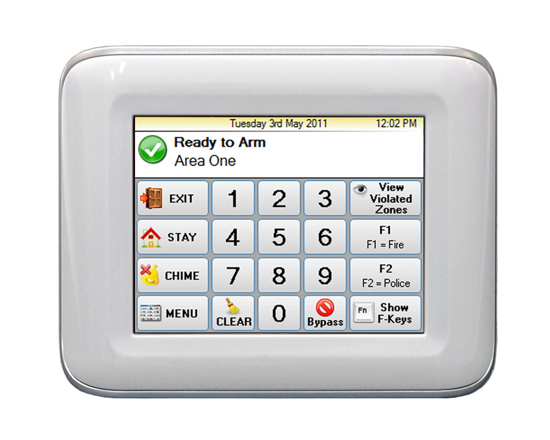
Short answer
Short answer
On the M1 Navigator, tap Menu, then System Settings. Enter a Master level alarm code if asked, and choose Set System Clock. Use the on-screen Set buttons and number keys to enter the weekday, date and 24-hour time, then check the main screen.
Before you start
Check that your keypad says M1 Navigator. Ness also makes a different Navigator touchscreen for other alarm panels, and its clock instructions are different. You need a Master level alarm code to open System Settings. If you do not have one, ask NorthTech rather than trying other codes.
The date and time shown on this keypad come from the M1 controller. If your system has a connected time service, the clock may be corrected automatically. Tell NorthTech if the time changes back after you set it.
Set the clock
- On the main screen, tap Menu at the lower left.
- Tap System Settings on the first page of the Main Menu. Enter your Master level alarm code if the Authorise screen appears.
- Tap Set System Clock. Leave the other System Settings to a service technician.
- Use the on-screen Set buttons to choose each part of the clock, then the number keys to enter its value. Set the day of the week when prompted. The M1 numbers the days 1 for Sunday through 7 for Saturday.
- Enter two digits each for the month, day of the month and year, in that order. For example, 18 November 2026 is 11/18/26, even though Australian dates are normally written day/month/year.
- Enter two digits for the hour and two for the minute using 24-hour time. For example, 3:45 pm is 15:45.
- Save the clock setting using the control shown on your keypad, then return to the main screen. Check the date and time in the strip at the top.
Official source: ELK M1 Navigator Touchscreen Keypad User Guide, page 21(opens in a new tab)
If the time is still wrong
If System Settings will not open, check that you used a Master level code. If the clock option is missing, the controls differ from these instructions or the time changes back, contact NorthTech. Tell us what the screen shows, but never include your alarm code in a support request, email or photo.
Official source: Ness M1 & M1-G Cross Platform Controller User Guide, page 19(opens in a new tab)
Want advice for your property?
Tell us what you are planning or what is already installed. We’ll give you a clear next step.